TickTick:To Do List & Calendar
- 4.6
- Rating
- 10.00M
- Installs
- Free
- Price

 Analysis by App-foxy
I use a task manager most when life becomes too crowded for memory to handle everything. That is where TickTick: To Do List & Calendar makes a strong first impression: it brings tasks, reminders, planning, and calendar views into one productivity workspace instead of scattering them across several apps. After spending time with it, I see it less as a simple checklist and more as a personal planning system that can grow with the way you work.
My overall experience is positive, but I would not call it effortless for everyone. The app gives you plenty of ways to organize commitments, which is useful when you have work projects, errands, recurring responsibilities, and personal goals competing for attention. At the same time, that flexibility can tempt you into building a system that takes more energy to maintain than your actual tasks require.
How TickTick fits into everyday planning
TickTick is a productivity app from TickTick Limited, available free of charge with optional in-app purchases ranging from $1.99 to $49.99 per item. It is rated for Everyone, so its basic concept is accessible to a broad audience: add something you need to do, give it a place in your schedule, and use reminders to make sure it does not disappear from view.
You May Also Like

 Pandora - Music & Podcasts
Pandora’s Music Is Easy to Start, but Harder to Recover
Pandora’s strength is its low-effort path from a seed to a station. Its weak spot is how much confidence it asks you to place in connection, setup, and quiet recovery.

 AccuWeather: Weather Radar
AccuWeather Review: A Quick, Clear Forecast for Everyday Decisions
For everyday plans, the best forecast is the one you can understand quickly. AccuWeather makes rain timing, radar, and local conditions easy to act on, with a few trade-offs.

 Hill Climb Racing
Why Hill Climb Racing Still Turns Crashes Into One More Run
A tiny car, a bumpy hill and one more upgrade: Hill Climb Racing keeps resurfacing because its simple chaos makes every near-miss feel personal.

 AliExpress - Shopping App
AliExpress Makes Global Shopping Feel Personal, but Shoppers Bear the Risk
AliExpress turns a global marketplace into a pocket-sized discovery engine. Its reach is useful, its shopping loop compelling, and its trade-offs easy to miss.

 Lords Mobile: Kingdom Wars
Lords Mobile Is a Kingdom-Building Routine, Not a Quick Match
A case-by-case verdict on the building, battles, device demands, and social commitments that make Lords Mobile rewarding for some players and exhausting for others.

 PDF Scanner app - TapScanner
TapScanner Makes Paperwork Easier to Capture, Check, and Share
TapScanner makes scanning with a phone feel less like a rescue operation and more like a dependable step in getting work done. Its capture tools are useful, though not flawless.
More From Our News Desk
View All News


The app has been available since June 19, 2013, and its scale is easy to understand from its store presence: it has passed 10 million installs, with an average rating of 4.6 from around 163 thousand ratings and roughly 8 thousand written reviews. Those figures do not prove that it will suit every workflow, but they do suggest that TickTick has become a familiar choice for people who want more than a bare list.
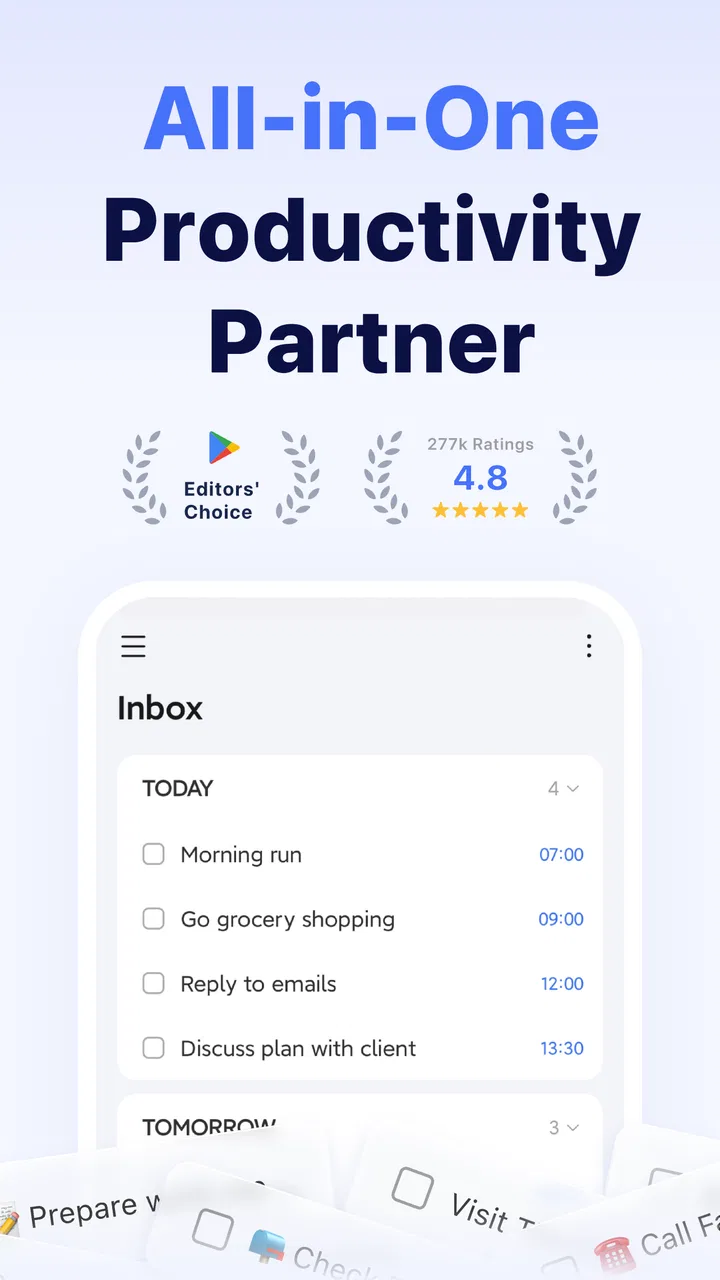
In practical use, I found the central idea simple. A task can begin as a quick note, then become something more useful when I add a due date, a reminder, a priority, a list, or a place in a larger project. That gradual approach matters. I do not need to decide every detail at the moment an idea occurs, yet I can return later and turn a vague intention into a scheduled action.
A realistic example is a busy weekday morning. I might capture “send the revised document” before leaving home, add “buy printer paper” to a personal list, and create a reminder for a bill that should not be forgotten. Later, the calendar view helps me see whether the document deadline fits around meetings and travel. The advantage is not that any one of these actions is unusual; it is that they can be managed in the same place without forcing me to remember which app contains each commitment.
Quick capture is useful, but the inbox needs care
One of the best habits I developed with TickTick was treating an unsorted task as a temporary holding point rather than a finished organizational decision. When I am busy, I can record an idea quickly and keep moving. During a quieter moment, I sort it into the right list, give it a realistic date, and decide whether it is actually actionable.
This prevents a common mistake with task apps: filling them with impressive-looking plans that never become clear next steps. “Prepare presentation” is not as helpful as “choose three examples for presentation,” and TickTick works better when I use it to define the next physical action instead of storing broad ambitions indefinitely.
The trade-off is that a large inbox can become another source of stress. If I capture everything but never review it, the app simply becomes a digital pile. I recommend setting a small review routine and deleting or rewriting tasks that no longer matter. TickTick can support a reliable system, but it cannot decide which commitments deserve your time.
Lists, dates, and priorities solve different problems
I get better results when I separate three questions: what is the task, where does it belong, and when should it happen? Lists answer the second question, dates answer the third, and priorities help me decide what deserves attention when the day changes.
That distinction is more important than it sounds. A work list is not automatically a schedule, and marking everything as urgent makes priority labels meaningless. I reserve the strongest priority for tasks with a real consequence if they slip. Routine items can stay visible without competing with a deadline that genuinely matters.
For household planning, separate lists are especially practical. I can keep shopping, maintenance, travel preparation, and personal projects apart while still viewing upcoming tasks together. For a small freelance workload, I might create a list for each client, then use dates and priorities to decide what appears first. The app is flexible enough for both approaches, but I would avoid creating a new list for every minor topic because excessive structure slows down capture.
Calendar planning is strongest when used for capacity
The calendar side of TickTick is not merely decorative. I found it most valuable as a reality check. A task list can make a day look manageable because it shows items without showing how long life already takes. A calendar view makes crowded deadlines and back-to-back commitments easier to notice.
My advice is to use the calendar to protect capacity, not to turn every minute into a rigid appointment. If I place too many tasks on one day, the resulting plan becomes discouraging before I begin. A better approach is to schedule the few actions that truly need a particular day and leave flexible work visible without pretending that every hour is available.
This is also where TickTick differs from a basic notes app. Notes are good for storing information, but they rarely push me toward a decision about timing. TickTick encourages that decision. Compared with a traditional calendar alone, it is better for tracking unfinished actions, while a dedicated calendar may still feel clearer for people whose lives revolve around appointments rather than tasks.
Reminders help, but too many become background noise
Reminders are valuable for tasks that are easy to overlook but not necessarily urgent in the moment. I use them for things such as renewing something, making a follow-up call, or taking an item with me when I leave. The key is to connect a reminder with a clear action. A notification that only says “project” is much less useful than one that tells me exactly what to do.
There is a hidden discipline here: every reminder creates a small demand for attention. If I assign alerts to every task, I train myself to dismiss them. I prefer reminders for consequences I would genuinely regret missing, while ordinary tasks remain in the day’s plan. That balance makes the notification system feel supportive rather than intrusive.
For people who need a strict alarm-based routine, it is worth testing the reminder behavior against their daily habits before moving every responsibility into the app. For others, especially those who forget recurring obligations, reminders may be the feature that turns a passive list into a dependable prompt.
Recurring work needs a clear definition
Repeated responsibilities are another area where a task manager can either reduce mental load or create confusion. I use recurring tasks for actions that truly repeat, such as regular household checks or routine planning. I avoid using recurrence for projects that merely have several stages, because a repeating task can hide the fact that the underlying work is changing.
A useful distinction is between “do this again” and “continue this until complete.” The first belongs in a recurring pattern. The second usually needs a project or a sequence of individual next actions. Making that distinction prevents a recurring item from automatically appearing forever after the original reason for it has disappeared.
This workflow is one of the more practical ways to get value beyond a simple checklist. The app becomes a memory aid for maintenance, not just a place to record today’s errands. Still, I recommend reviewing recurring items occasionally. A task that was sensible last season may no longer deserve a permanent place in your system.
Where the app feels different from simpler alternatives
A basic reminders app is often the better choice if you want to add a short task, receive a notification, and move on. It has less setup and fewer decisions. TickTick is more suitable when you want a relationship between lists, deadlines, priorities, calendar planning, and recurring work.
A notes app is better for long reference material, rough writing, and information that does not need an action date. I would not use TickTick as my main archive for detailed documents. Its strength is turning commitments into manageable actions, not replacing every other place where information belongs.
A calendar-first system is preferable for someone whose day is controlled almost entirely by appointments. TickTick becomes more compelling when the day contains many tasks that do not naturally appear as meetings. It can sit alongside a calendar-oriented routine, but users should decide which tool is the source of truth for scheduled events. Duplicating the same commitment in several places can create more uncertainty than clarity.
Compared with highly minimal task apps, TickTick asks for more attention but offers more room to adapt. Compared with complex project-management software, it feels more personal and less dependent on formal team processes. I would choose it for individual planning, study, household organization, and small independent projects rather than for a business workflow that requires extensive collaboration controls.
Trust begins with visible choices, not assumptions
Because this app can hold private plans, deadlines, routines, and personal notes, I think about trust in practical terms. I look for the choices I can see while using it: what I enter, which tasks receive reminders, how much detail I attach, and whether I can keep sensitive information out of a task entirely.
The safest habit is simple data minimization. A reminder can say “review account document” without containing an account number, access code, or unnecessary personal detail. A shopping task does not need private background information. This is not a criticism unique to TickTick; it is a sensible approach for any cloud-connected productivity service where a task may appear in notifications or on a shared device.
I also recommend checking account and notification settings during setup rather than waiting until the app becomes central to your routine. User agency is strongest when you deliberately choose what deserves an alert, what belongs in a shared context, and what should remain offline or outside the task manager altogether.
The app’s free entry point makes it easy to try without an immediate financial commitment, while the optional purchases mean that some users may eventually need to decide whether expanded capabilities justify spending. I would first build a stable workflow with the free experience, then evaluate what you actually use before paying. Buying features to solve an organizational problem is rarely effective if the underlying habit is still inconsistent.
Who will benefit most from TickTick
I would recommend TickTick to someone who repeatedly writes tasks in several places and then forgets where they went. It is also a good fit for people who need reminders and recurring planning but do not want a full project-management environment. Students can use it to separate subjects and deadlines, while households can keep errands and maintenance visible without mixing them into work planning.
It is particularly useful for people who think in both tasks and time. If you often ask, “What do I need to do?” and then immediately ask, “When can I realistically do it?”, the combination of task organization and calendar planning makes sense.
I would be more cautious about recommending it to someone who wants a frictionless two-button checklist. If you resent sorting tasks, reviewing lists, or adjusting dates when plans change, the app may feel like additional administration. It is also not my first choice for detailed team coordination or document-heavy work. In those situations, a specialized collaboration or notes tool may be more appropriate.
People with notification fatigue should begin conservatively. Add only a few meaningful reminders, observe whether they help, and expand slowly. The app can support attention, but it should not become a stream of alerts that competes with the work itself.
My practical setup for a calmer first week
I would start with a small number of lists: work, personal, errands, and perhaps one temporary inbox. Then I would add only the tasks that are currently active. This keeps the first view understandable and makes it easier to learn how the app fits real life rather than designing an elaborate structure in theory.
Next, I would give dates only to tasks that have a genuine deadline or a useful planned day. I would choose a handful of reminders for consequences that matter, then use the calendar to check whether the plan is realistic. At the end of the week, I would look for tasks that were repeatedly postponed. Usually that means the task is too large, not important enough, or scheduled at the wrong time.
One technique I found valuable is converting postponed tasks into smaller actions instead of endlessly moving the same wording forward. “Organize taxes” can become “find last year’s documents,” followed by a later action. This makes the system more honest and reduces the guilt attached to a vague item that never reaches completion.
I would also keep private information out of task titles and notification text. Use the app for the action and store sensitive details in a more appropriate place. That small choice improves privacy without making the workflow complicated.
My cautious verdict after using it
TickTick is a capable productivity app for people who want one place to connect tasks, reminders, dates, priorities, and calendar planning. I appreciate that it can stay simple at the moment of capture while offering more structure later. That makes it useful for ordinary days as well as busier periods when a plain checklist starts to break down.
Its main weakness is the same quality that makes it powerful: there are enough organizational options to encourage overbuilding. The best experience comes from using only the structure you will actually review. Lists should clarify, reminders should protect important commitments, and calendar planning should reflect real capacity rather than wishful thinking.
With an average rating of 4.6 and more than 10 million installs, it is clearly a widely used choice, but popularity should not replace a personal trial. I would begin with the free version, keep the setup modest, and pay attention to how the app handles your own routines and privacy preferences. My recommendation is positive for anyone who needs a flexible personal task system, but cautious for users who want absolute simplicity or highly specialized collaboration.
FAQs for TickTick:To Do List & Calendar
01What is TickTick: To Do List & Calendar used for?
TickTick is a productivity app designed to combine task management, reminders, calendar planning, habit tracking, notes, and focus tools in one place. After setting up lists and projects, you can organize personal errands, work assignments, study deadlines, and recurring responsibilities. Its calendar views also make it easier to see how tasks fit into your daily or weekly schedule.
02Is TickTick free to download and use?
TickTick can generally be downloaded and used with a free account, but some advanced features may require a Premium subscription. Depending on the current plan, premium tools can include additional calendar views, more reminders, habit-tracking options, customization, historical data, and enhanced productivity features. It is worth checking the latest pricing and feature limits in the app store before subscribing.
03Does TickTick support reminders and recurring tasks?
Yes, reminders and recurring tasks are among TickTick’s most useful features. You can assign due dates, times, repeat schedules, priorities, tags, and subtasks to an item. Notifications can help you remember appointments or deadlines, while recurring tasks are useful for routines such as paying bills, exercising, cleaning, or reviewing weekly work. Notification permissions must be enabled for alerts to function properly.
04Can TickTick synchronize tasks across Android, iPhone, and other devices?
TickTick is built for use across multiple devices, allowing your tasks, lists, calendar information, and other supported data to stay synchronized when you sign in to the same account. This is convenient if you switch between an Android phone, iPhone, tablet, or computer. Synchronization depends on an internet connection, and recently edited information may take a moment to update.
05Is TickTick suitable for shared projects and collaboration?
TickTick can be useful for sharing lists and coordinating tasks with other people, making it suitable for simple household planning, group activities, and smaller projects. However, users looking for advanced team features such as detailed workload management, enterprise reporting, or complex project dependencies may find dedicated project-management platforms more appropriate. Review the current sharing limits and collaboration features before relying on it for larger teams.
Pros
- Natural-language task entry makes adding reminders quick and convenient.
- Flexible recurring tasks handle complex schedules with useful customization options.
- Habit tracking is integrated
- reducing the need for a separate habit app.
- Focus timer and productivity statistics support structured work sessions.
- Tasks can be organized with folders
- tags
- priorities
- and multiple sorting options.
Cons
- Many advanced calendar and productivity features require a Premium subscription.
- The large feature set can feel overwhelming for users wanting a simple task list.
- Some interface elements and settings take time to discover and configure.
- Collaboration tools are less robust than those in dedicated team-management apps.
- Heavy use of reminders
- widgets
- and syncing may increase battery consumption.

TickTick:To Do List & Calendar
Gallery